Guide
Google Business Profile: how to create and manage it
When someone types “glazier Sarajevo” or “plumber near me”, the first thing they see is often not a website but a map with three businesses under it. Those three are there because of their Google Business Profile. This guide explains what the profile is, how to open and manage it, and where businesses most often go wrong.
Published October 15, 202612 min read
In short
The short answer
Google Business Profile is a free listing of your business that shows on Google Maps and in local search results. Until 2021 it was called Google My Business, and many people still search for it under that name.
Setting it up takes an afternoon: name, category, address or service area, phone and opening hours. Then Google verifies it, because an unverified profile does not appear in results the way it should.
The real work starts after that. A profile with the right category, real photos and a steady flow of reviews keeps working for years; a profile that was opened and forgotten does almost nothing.
Basics
What a Google Business Profile is and why it owns the map
For searches with local intent, Google shows a map with a few businesses next to the ordinary results. That block is filled from business profiles, not from websites. A business without a profile cannot appear in it, however good its website is.
Google publicly names three things it uses to rank local results: how well a profile matches what was searched, how far the business is from the searcher or from the place they typed, and how prominent the business is. You cannot change the distance. You can work on the other two, and that is what the rest of this guide is about.
For a business that works locally, like a glazier, a tradesman or a salon, the profile therefore often brings more calls than the website. But they are not two separate things: the profile sends people to the site, and the site confirms to Google that the business is real and does what the profile claims.
Opening
How to create a Google Business Profile
Google changes the exact look of the screens from time to time, but the four decisions below hold whatever the layout. Right after them comes the procedure step by step, with a screenshot of every screen.
First check whether a profile already exists
Search for the business name on Google Maps. A profile can exist even if you never opened one: a customer, a former employee or Google itself may have created it. In that case you do not make a new one but request access to the existing one, because two profiles for the same business work against each other.
Open it on the business account, not someone else's
The profile should sit on a Google account the business controls. A contractor, an agency or a relative gets a manager role, not ownership. This is the most common reason a business cannot get into its own profile a few years later.
Enter the details as they really are
The name as it appears on the sign and on invoices, the main category, address or service area, phone, website and opening hours. The rest can be added later, but these six should be correct from day one.
Complete verification
Google has to confirm that the business exists and that it is yours. Google picks the method: it may be a short video of the premises and documents, a call or text to your phone, or a postcard with a code. Which method you are offered is not up to you and can differ from one business to the next.
When verification gets stuck, the usual reason is a mismatch: the name in the video is not the same as in the profile, the address does not match what the map shows, or the video does not make clear that the business really operates there.
Step by step
Opening the profile step by step, with screenshots
This is how the procedure looked in October 2026. Google shows the screens in your account's language, so your labels may read differently, but the order of the steps is the same. Before the first click, sign in with the business's Google account.
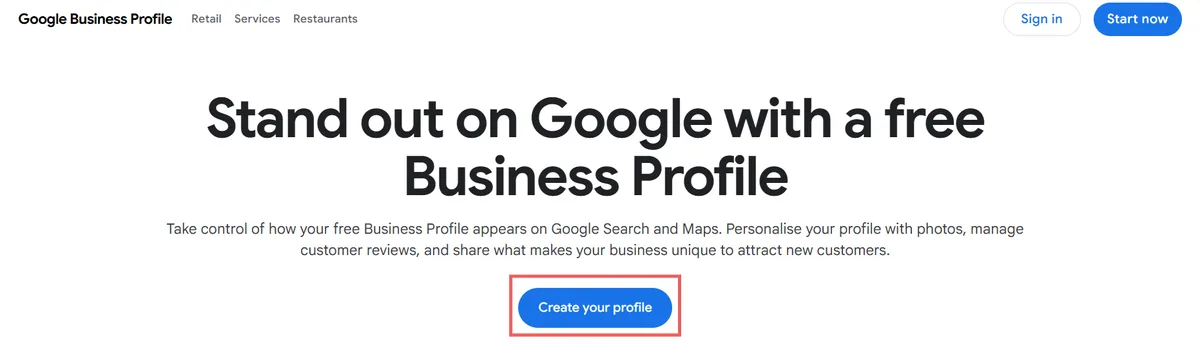
01Open the Google Business Profile page
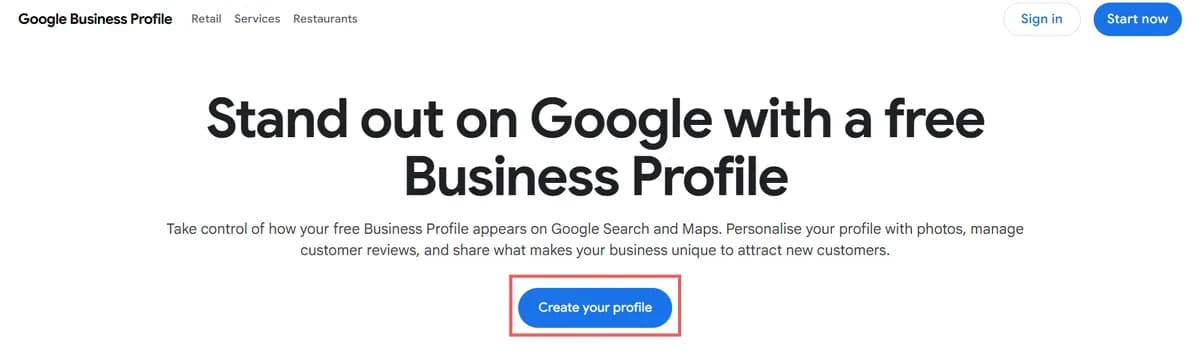
On Google's business profile page, click “Create your profile”. If you are not signed in, Google asks you to sign in first. Use the account that belongs to the business, not the personal account of an employee or a contractor.
Open Google Business Profile at google.com/business
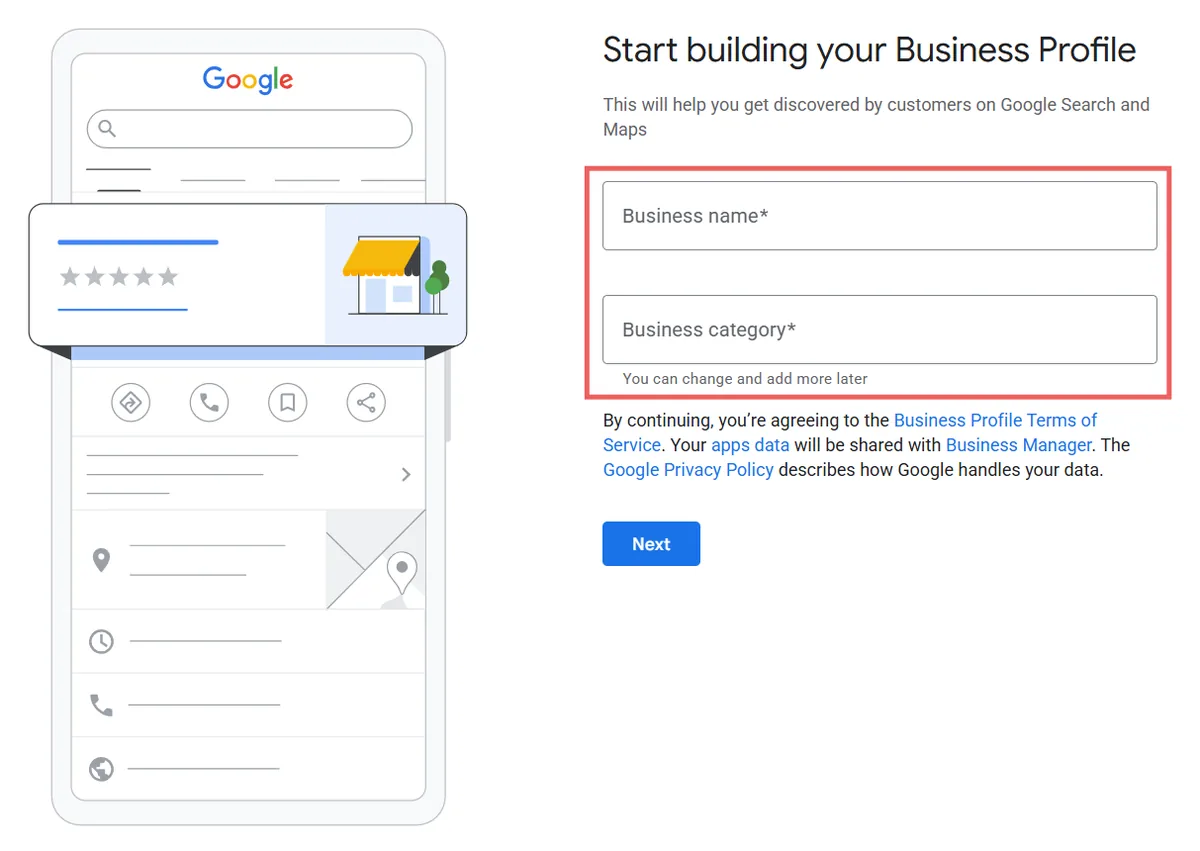
02Enter the business name and main category
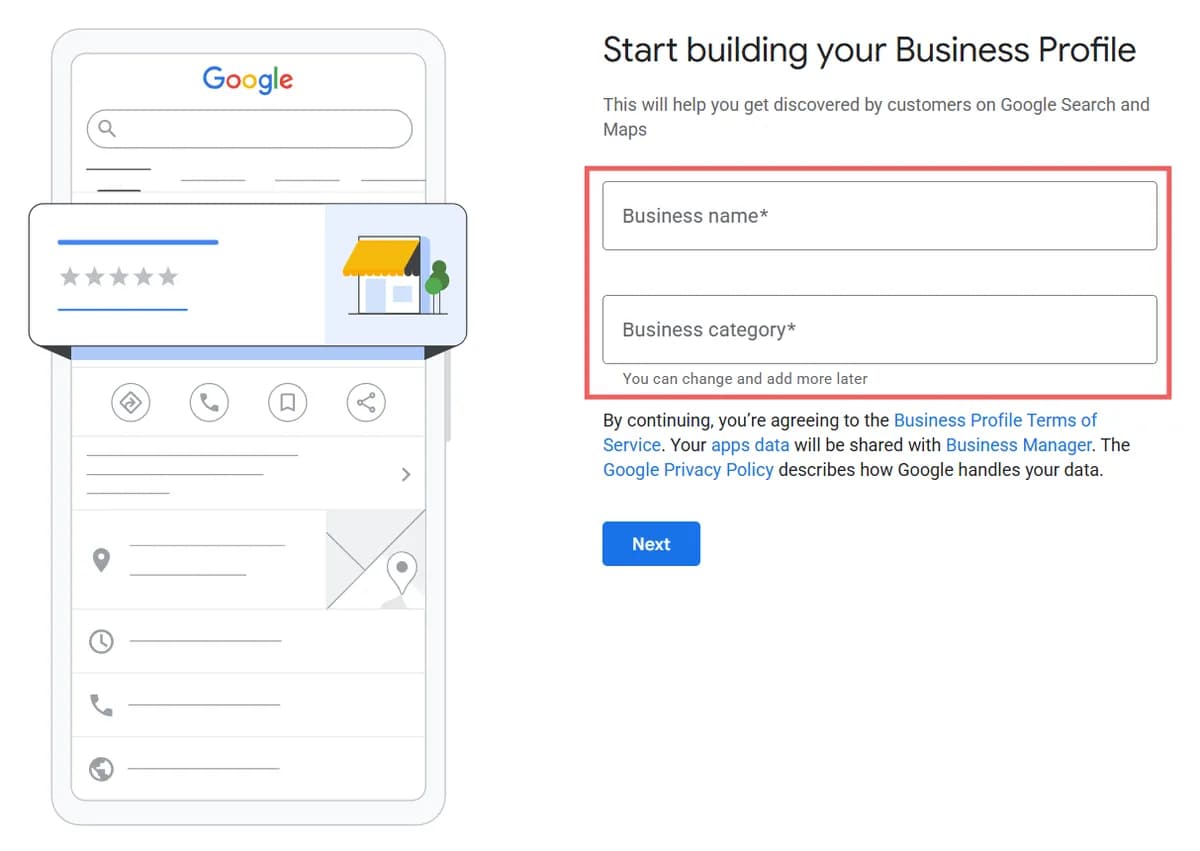
The “Business name” field takes the name as it appears on the sign and on invoices, without the town and without keywords. In “Business category”, start typing your trade and pick a category from Google's list. The category can be changed later, and additional ones are added once the profile is open.
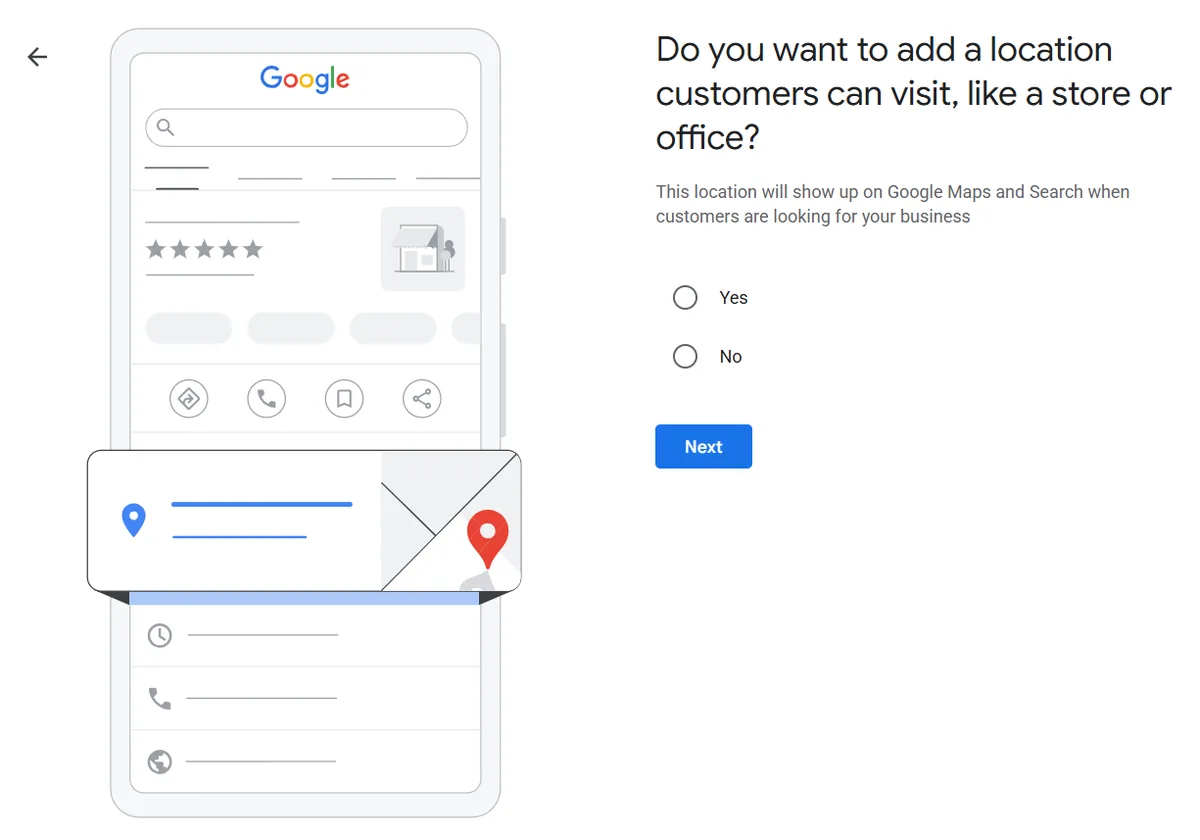
03Decide whether customers come to your address
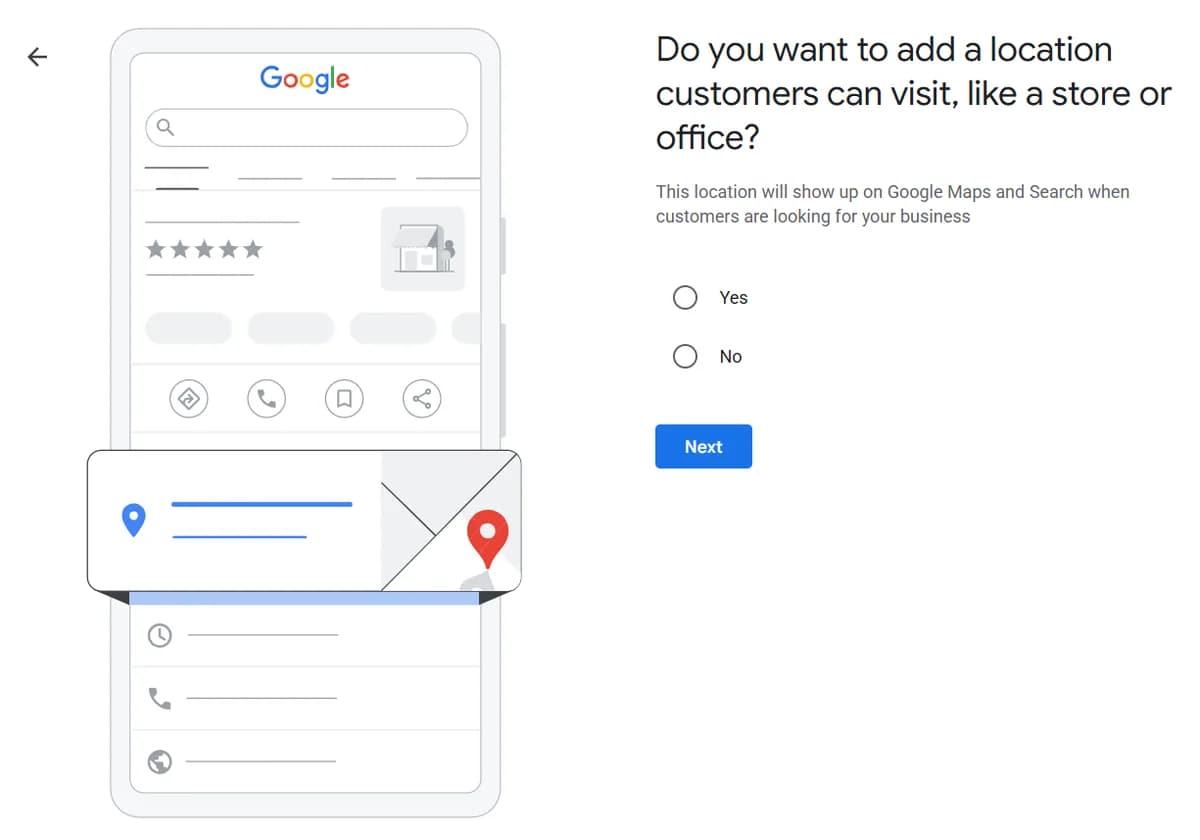
Google asks whether you have a location customers can visit, such as a shop, salon or office. Choose “Yes” if customers come to you, and the address will show on the map. Choose “No” if you work at the customer's place, like tradesmen and installers: the address is then hidden and the business is tied to a service area.
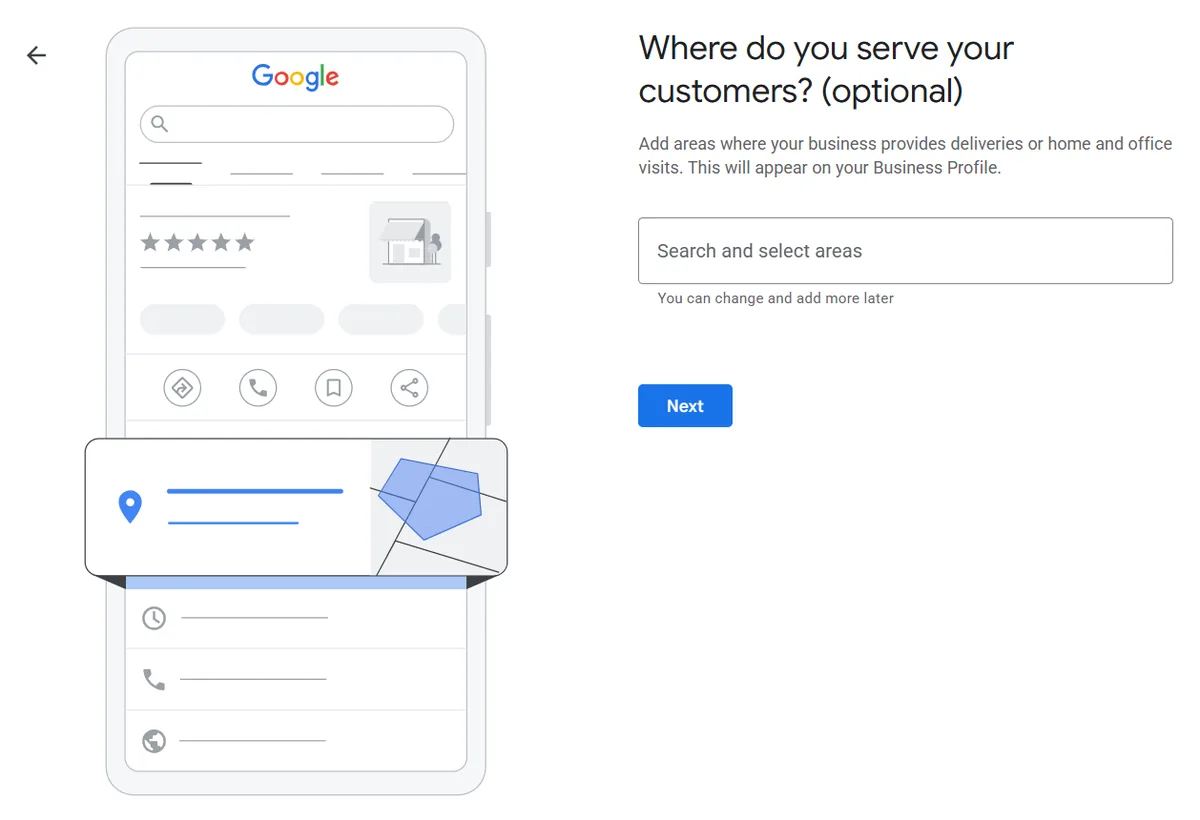
04Add a service area
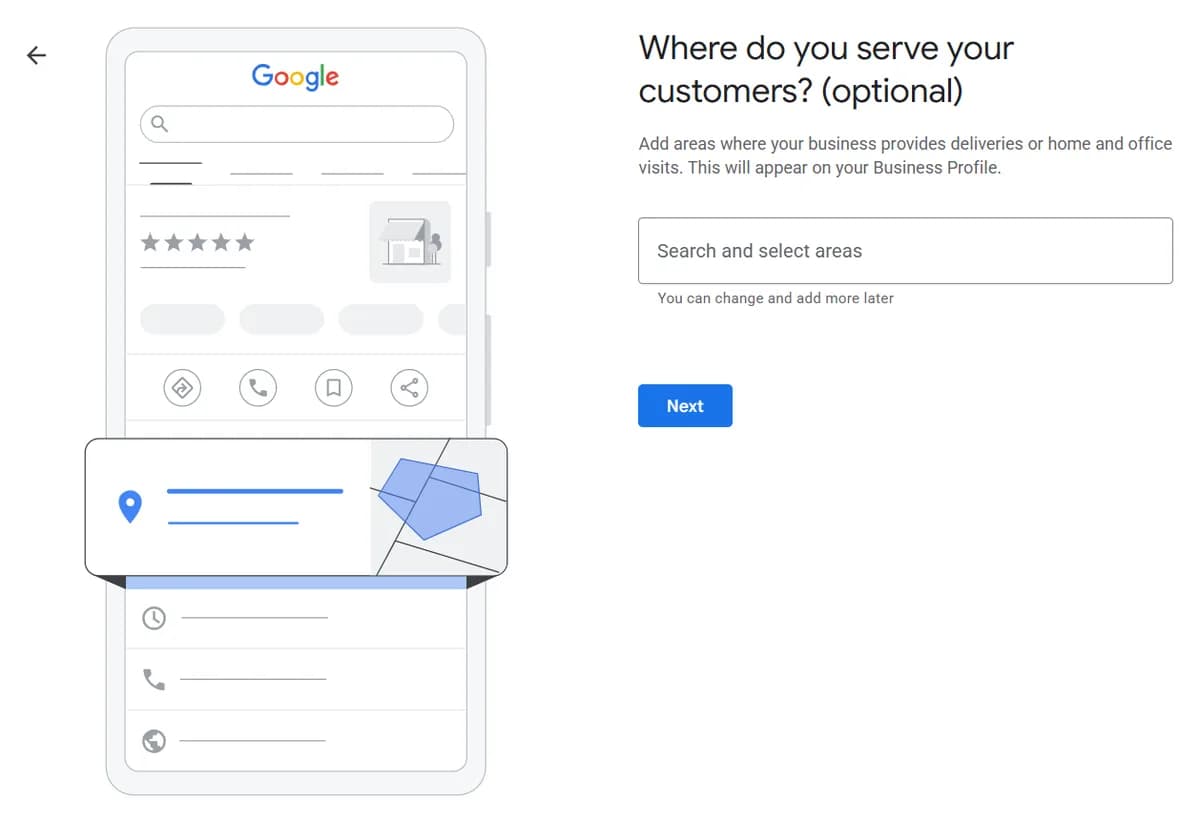
This step is optional, but it matters for a business that goes out to jobs. Enter the towns or regions where you actually work, for example Sarajevo, Ilidža and Vogošća. Do not list the whole country if you do not work everywhere, because the area should match reality.
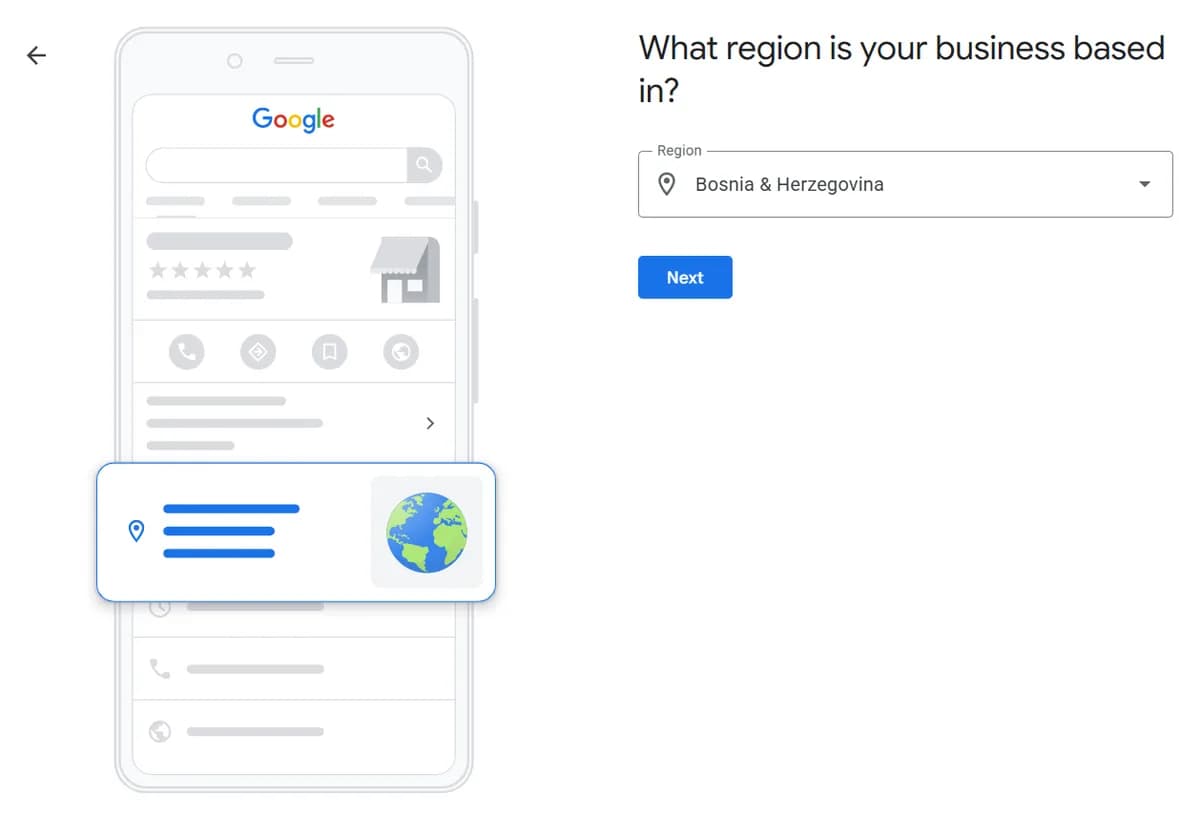
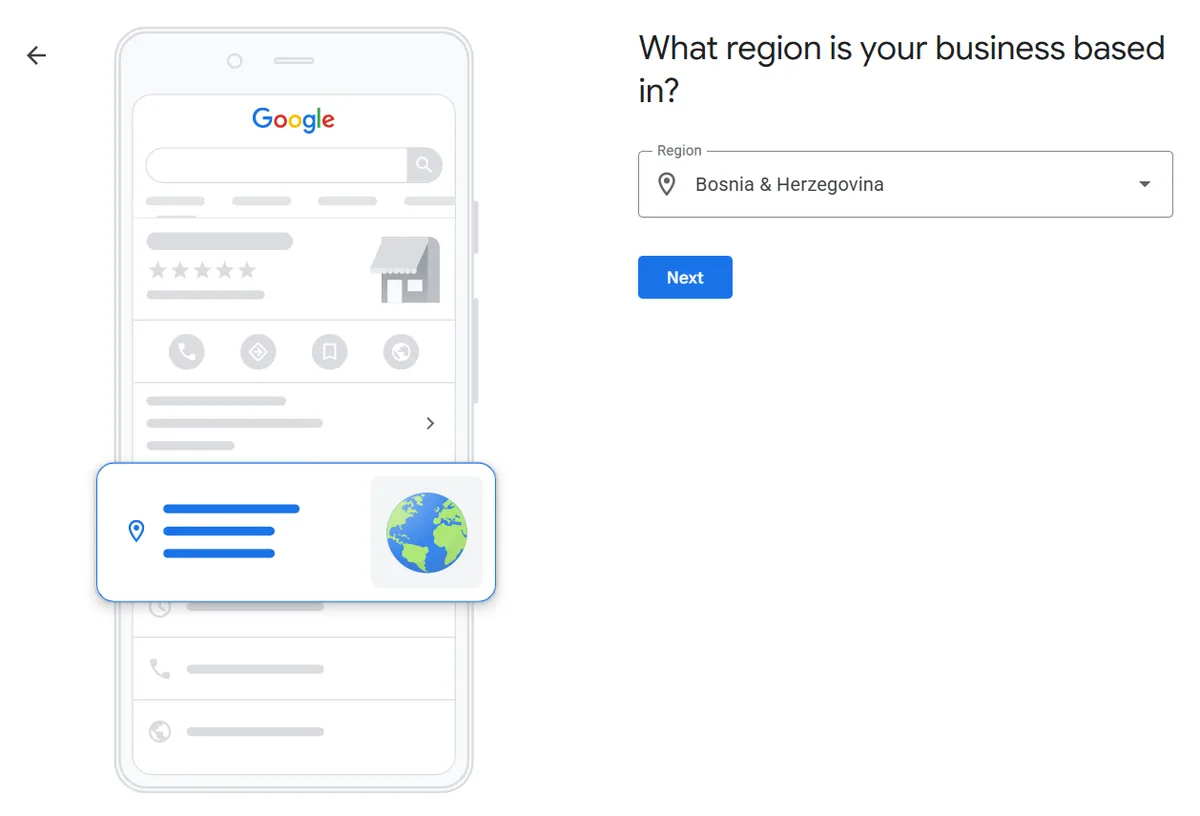
05Confirm the country
Choose the country where the business is based, for a business in Bosnia that is Bosnia & Herzegovina. The country decides the phone and address formats in the next steps.
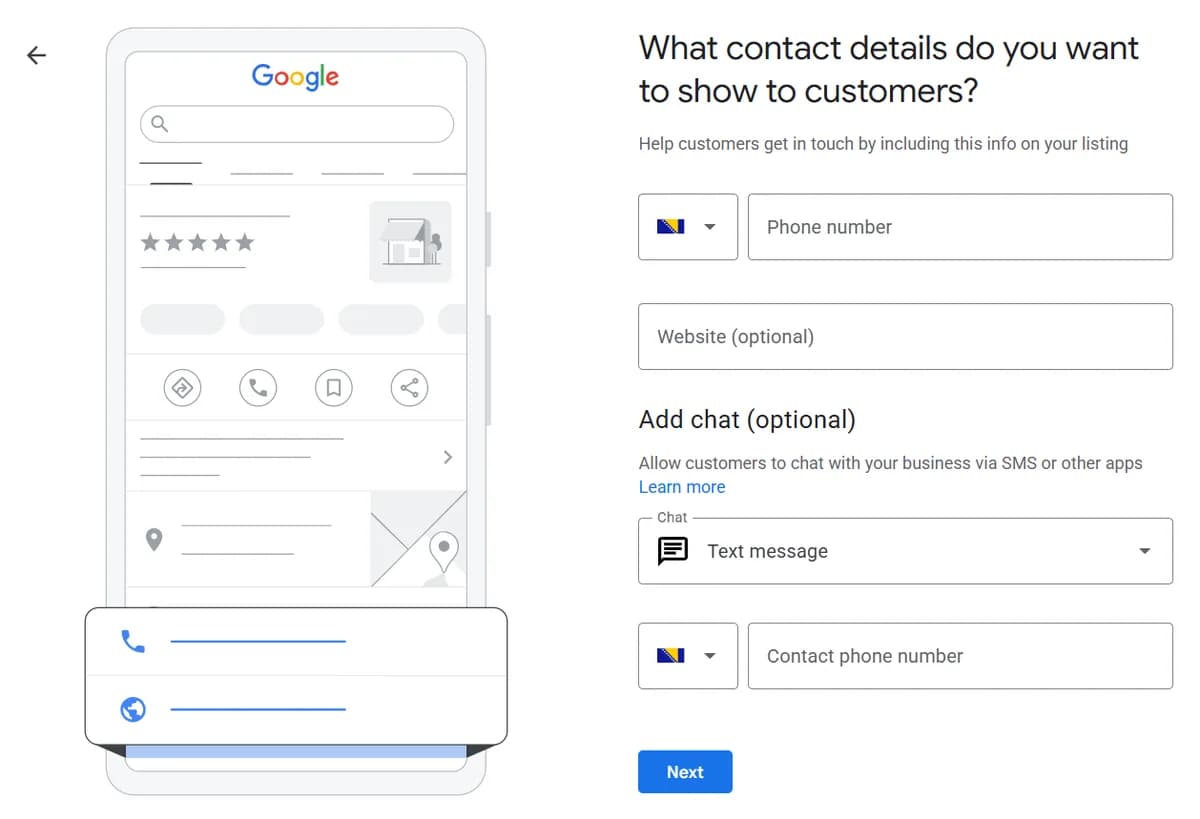
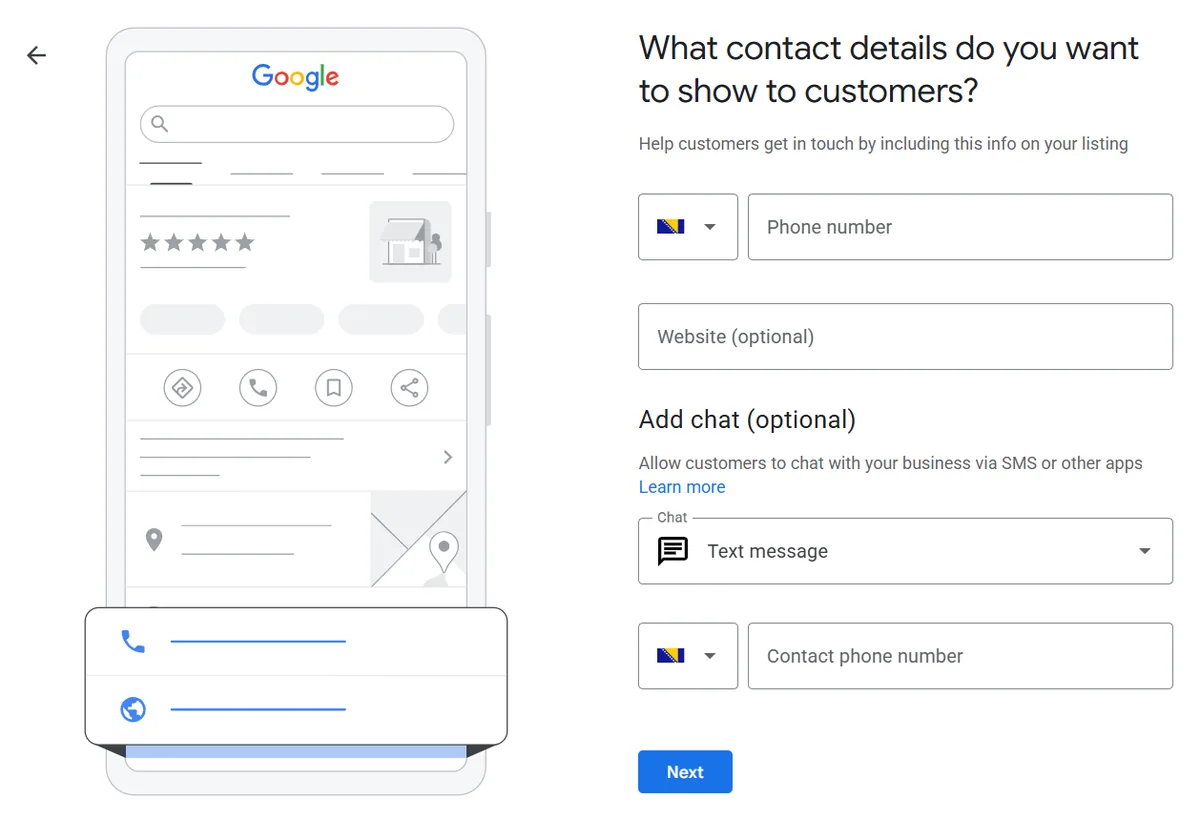
06Enter the phone number and website
A phone that someone actually answers, and your website address. If the business offers several services, the link can point to the page of the main service rather than the home page. Chat is optional: turn it on only if someone will answer the messages, because an unanswered message looks worse than having no option at all.
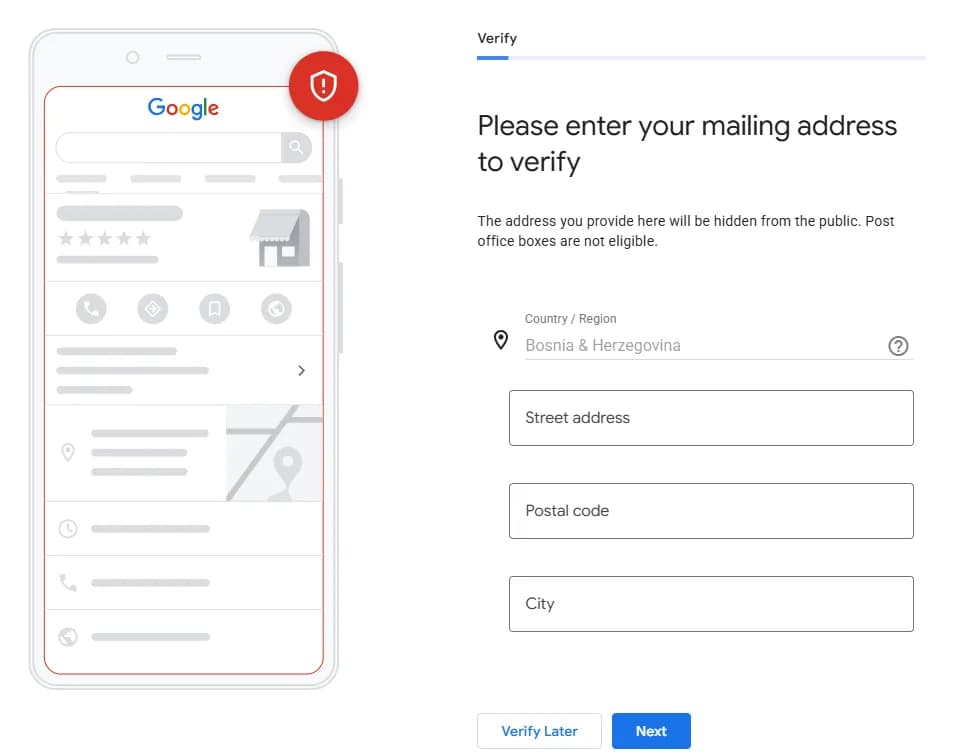
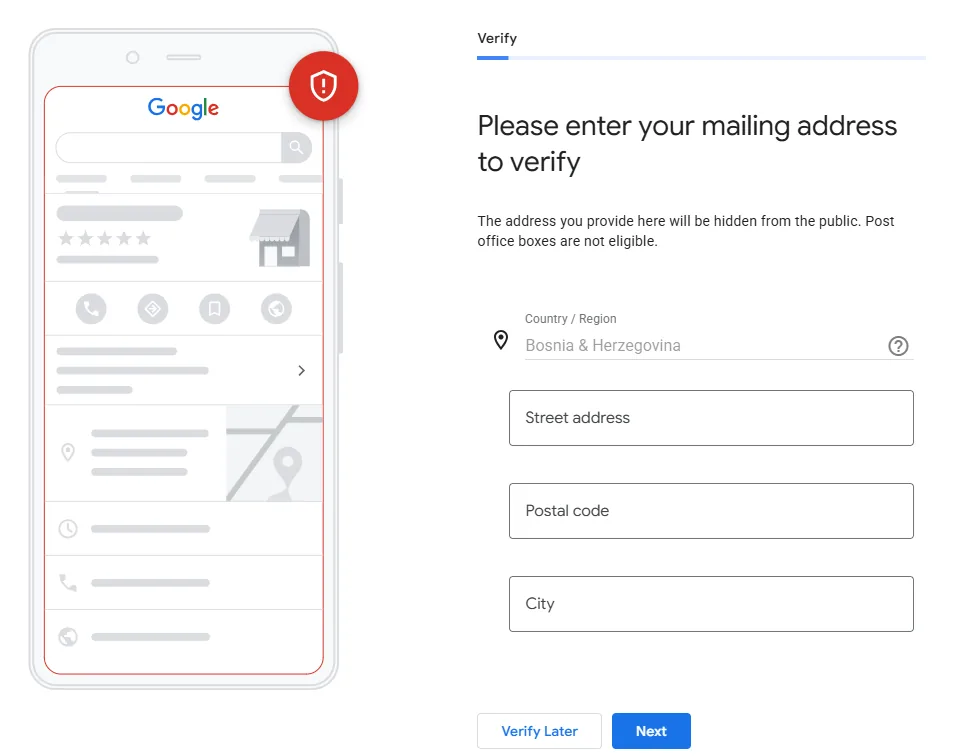
07Enter the address for verification
Google asks for the business's mailing address to confirm the business exists. This address is not shown publicly, and a PO box is not allowed. The “Verify later” button postpones confirmation, but until then the profile is not fully visible in results. Google picks the verification method in the end: a short video, a call or text to your phone, or a postcard.
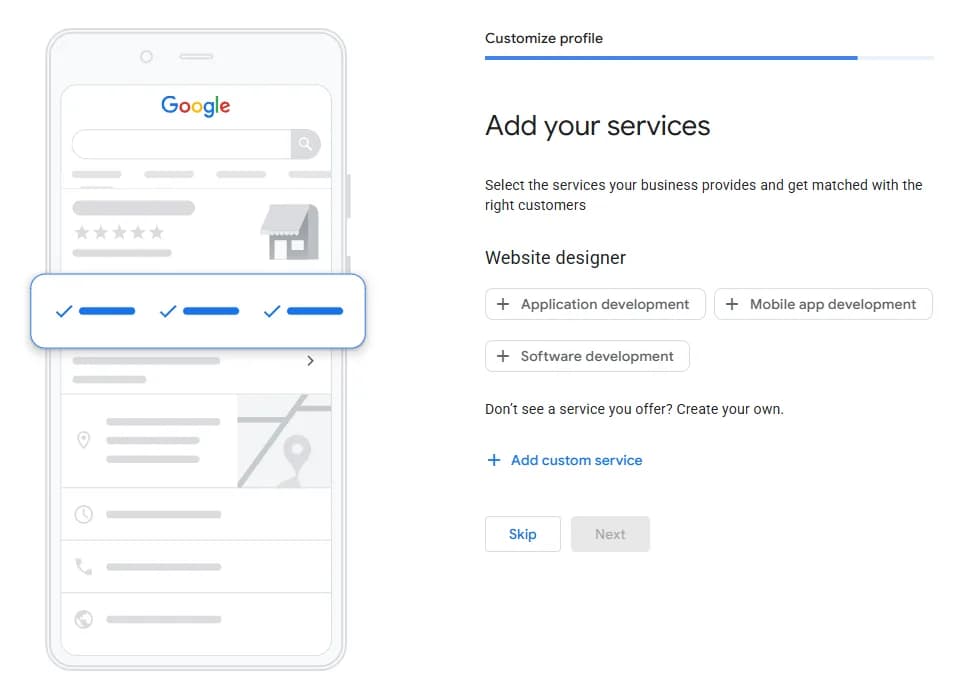
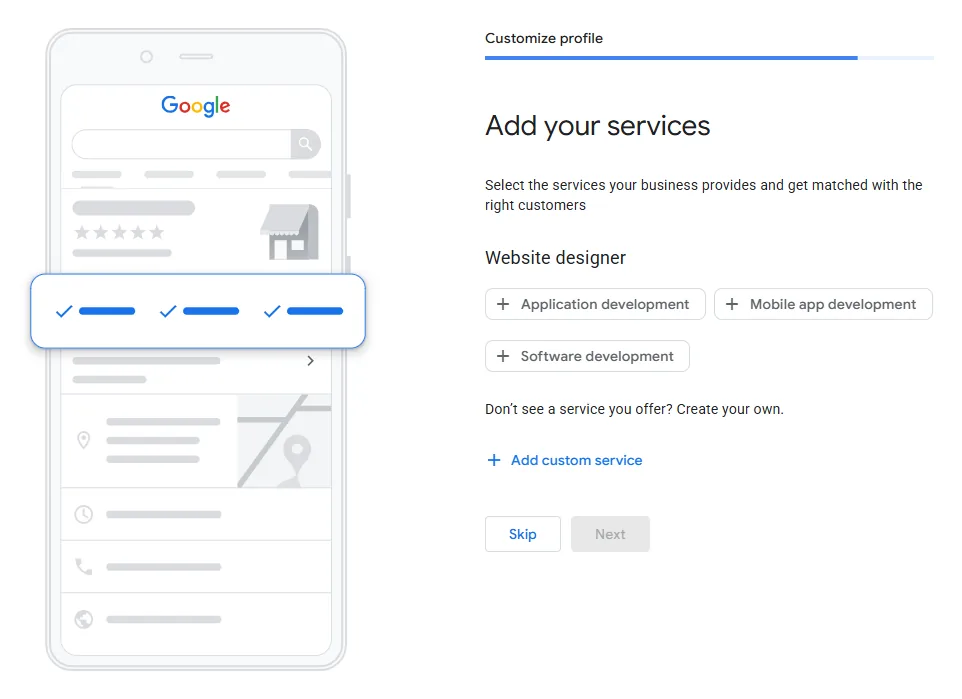
08Choose your services
Google suggests services based on the category you chose; in the screenshot they are services for a website designer. Tick the ones you really offer and add what is missing through “Add custom service”. Services help the profile appear for more specific searches, not only for the category name.
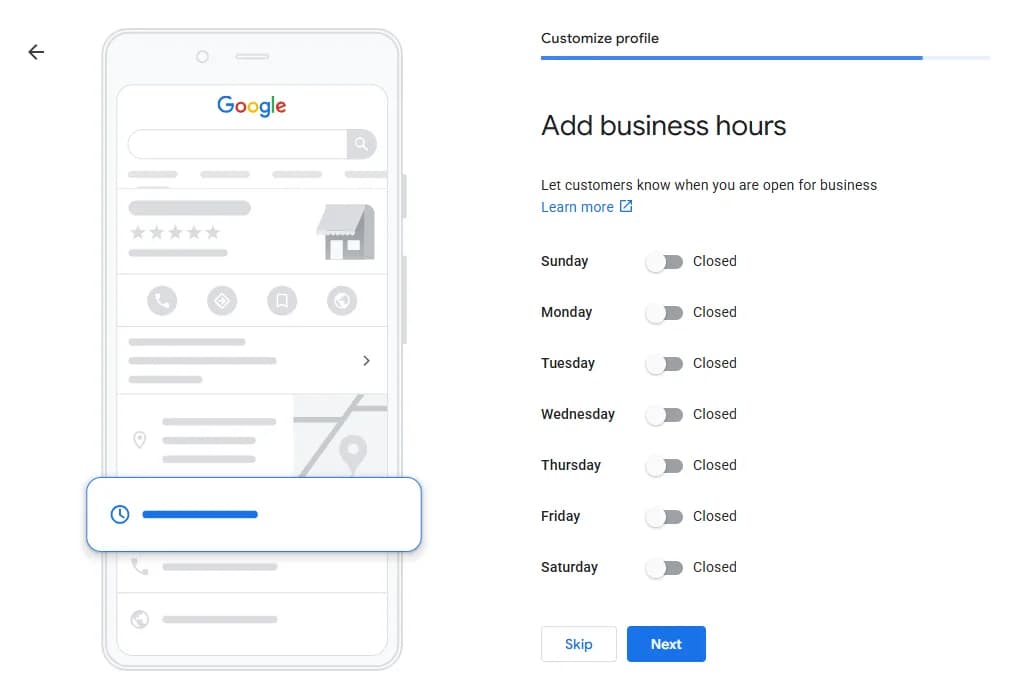
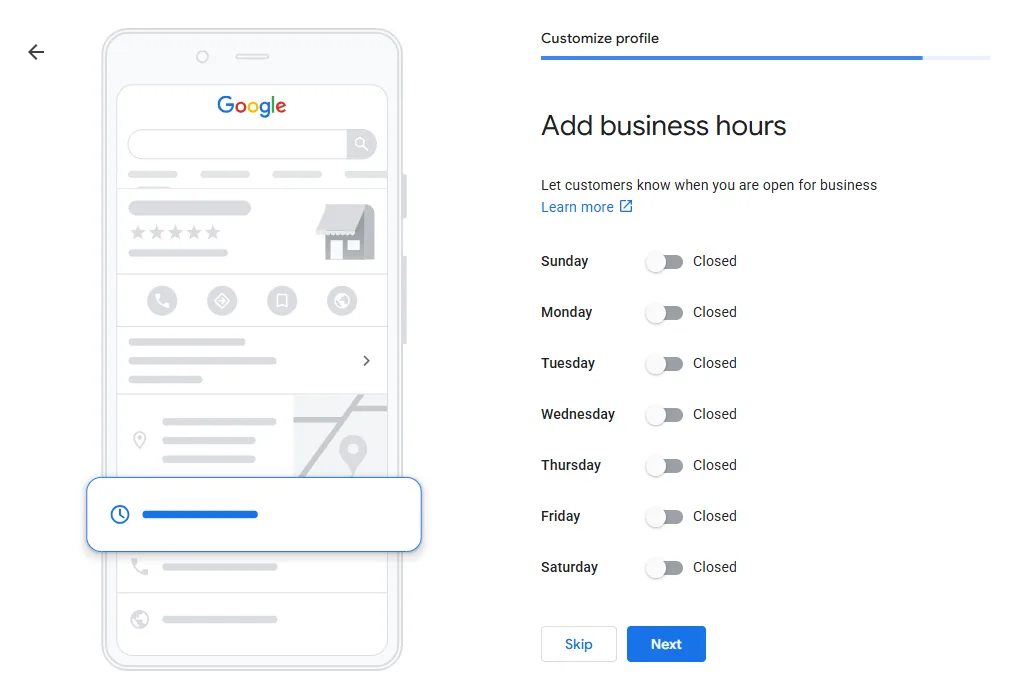
09Enter your opening hours
For each day, turn the switch on and enter when you open and close. Leave the days you do not work closed. Holidays and special hours are added later, when you edit the profile.
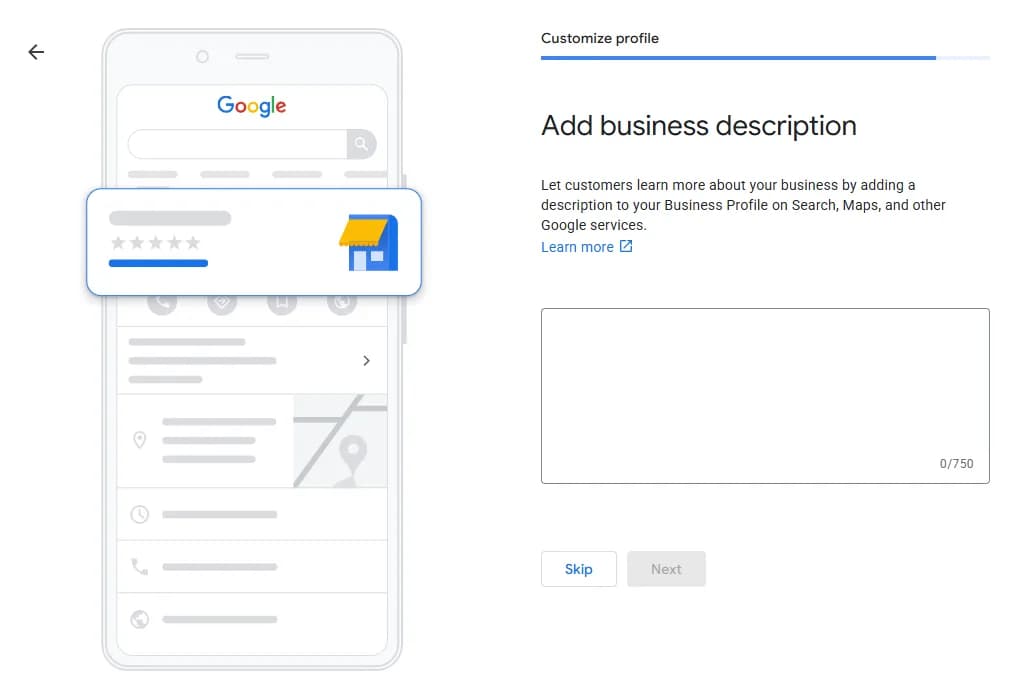
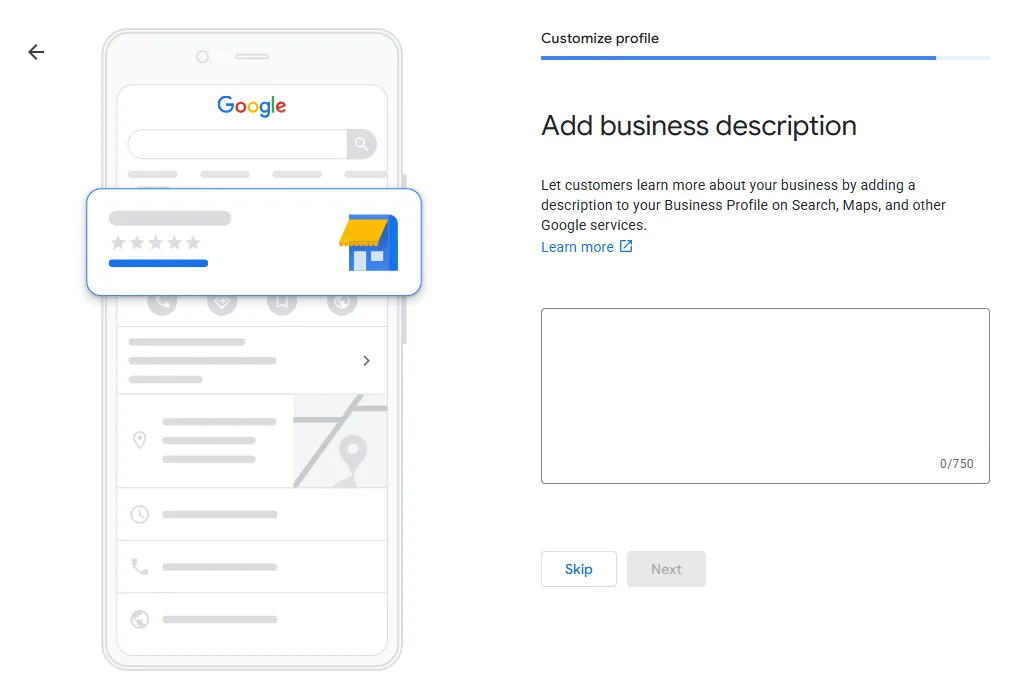
10Write the business description
You have 750 characters. Write what the business does, where and for whom, in plain language, as if explaining it to a customer. Links, promotions and lists of keywords do not belong in the description, because Google's rules do not allow them. The first two sentences matter most, since they show without a click on “more”.
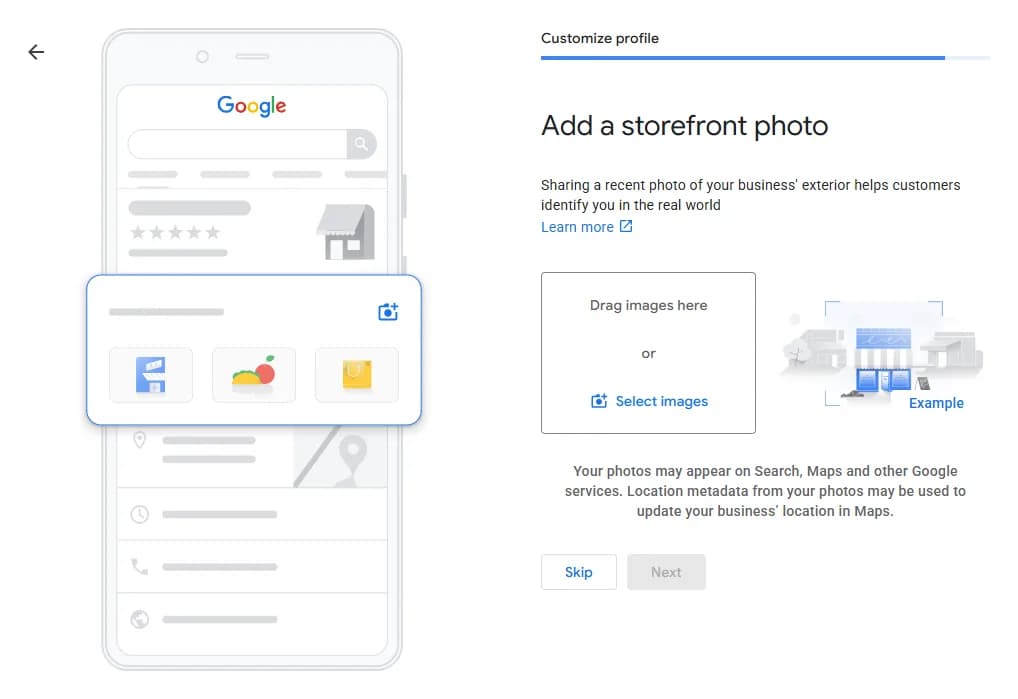
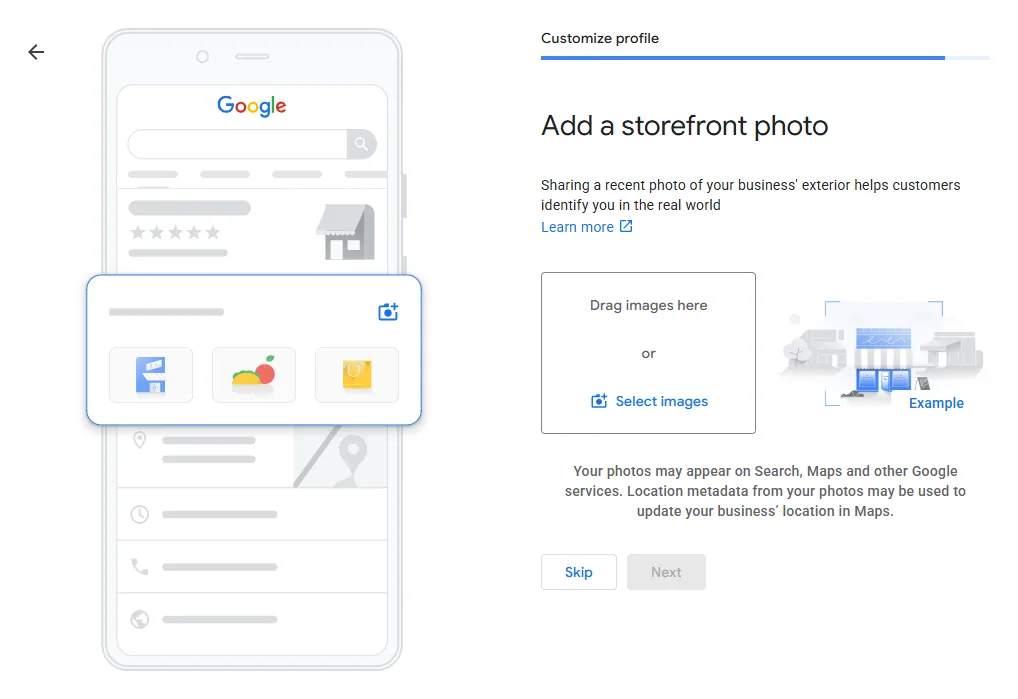
11Add a photo of the entrance or storefront
A photo from outside helps a customer recognise the place when they arrive. If customers do not come to you, skip this step with the “Skip” button.
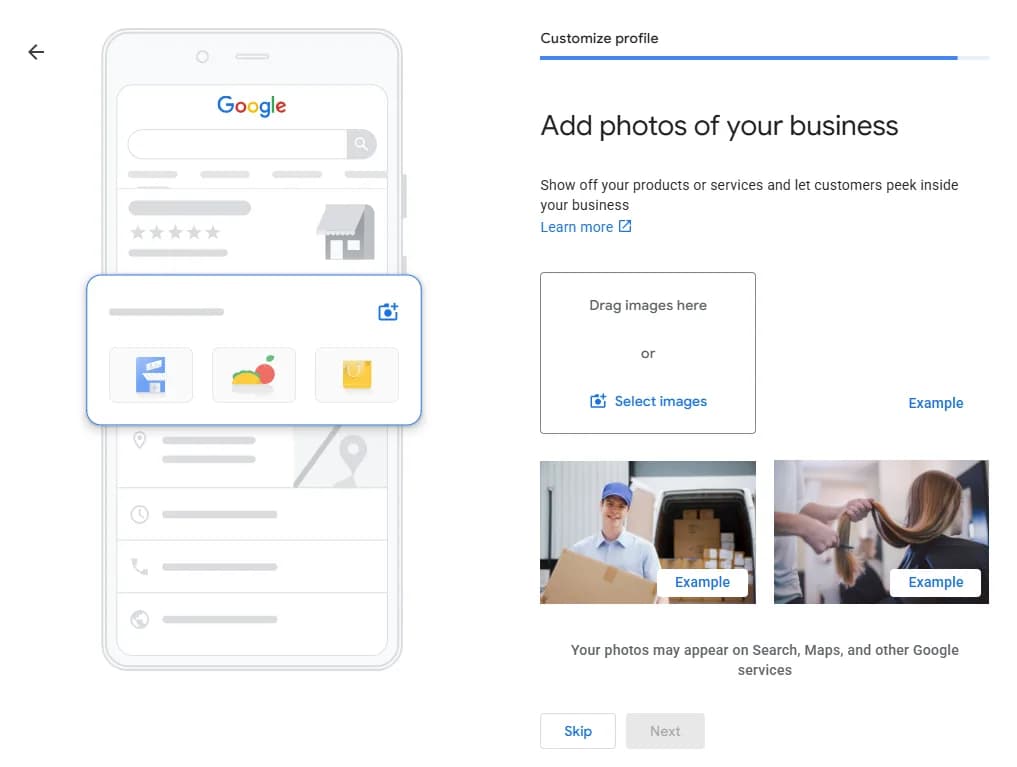
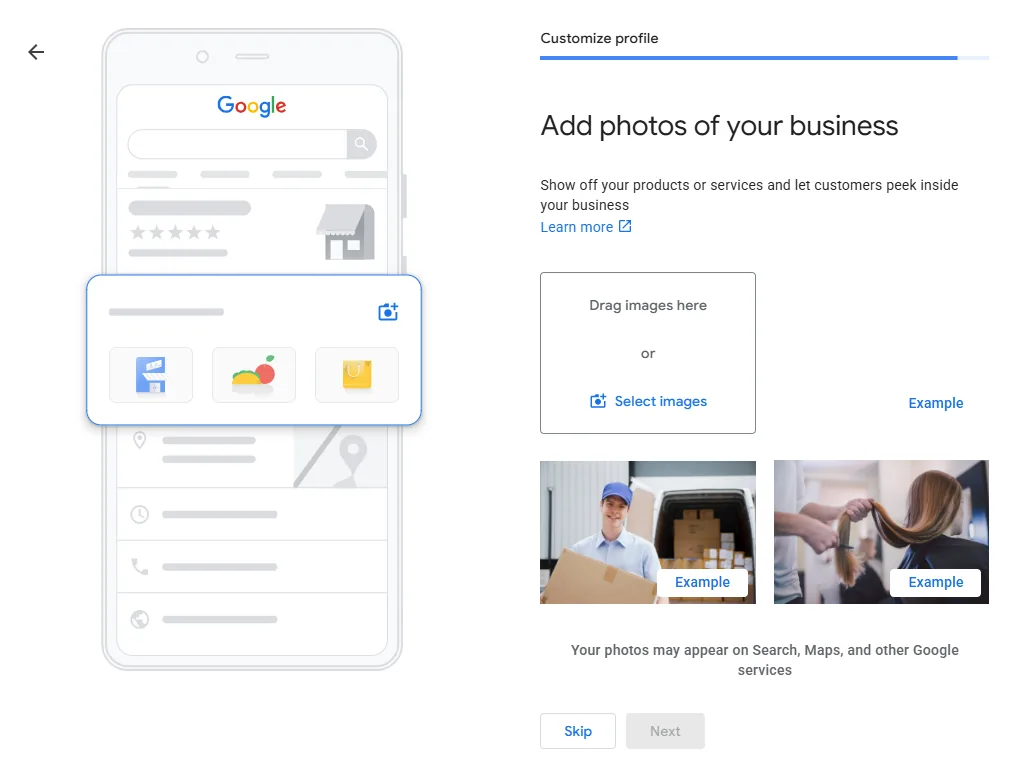
12Add photos of your work
Real photos of finished jobs, the team at work or the premises. Do not use catalogue pictures or images from the internet. A few good photos are enough to start, and new ones go up after bigger jobs.
Once you finish all the steps, Google takes you to verification. While it is pending you can keep editing the profile, but it only appears in full in search and on the map after confirmation. The rest of this guide is about keeping the profile up to date so that it brings calls.
Categories
Main and additional categories
The category is the decision that most affects which searches the profile shows up for at all. Google asks for one main category and allows a few additional ones, and categories are picked from its list, not typed freely.
The main category should describe what the business lives on, not everything it does. For a glazing workshop such as StakloDom, a glass firm from Bosnia, the natural choice is glazier. If a business also has a showroom with shower enclosures and fittings, like Tuš Art, a bathroom supply store makes sense as an additional category. But only if a customer can really come and look around; a category for work you do not do brings calls that never turn into jobs.
More categories is not better. Google itself advises choosing as few categories as needed to cover the core business. A profile with ten categories does not show up for ten times as many searches; it looks as if it does not know what it does.
The list of categories changes and depends on the language you view it in, so always pick the exact name from what is offered rather than copying it from someone's advice.
Basic details
Opening hours, address and service area
These details look small, but a customer uses them to decide whether to call now or tomorrow, and whether to call you or the next business on the map.
Opening hours, including holidays
Enter your real opening hours, and special hours for holidays when they differ. A customer who arrives at a closed door because of wrong information on the map does not forget it, and a review may remember it too.
A business that goes out to jobs
Tradesmen, installers and glaziers often work at the customer's place rather than in a shop. Google has a service area for such businesses: you enter the towns or regions you work in. If you do not receive customers at your address, Google's rules say to hide it and leave only the area.
A business with a shop or showroom
If customers come to you, the address stays visible, and a service area can be added next to it. The address must be a real place where the business operates. A PO box or an address where nobody works is not allowed.
Phone and website
A number someone actually answers, and a website link that leads to a page matching the profile. If the business offers several services, the link can point to the page of the main service rather than the home page.
Photos
Photos that do the work
A customer comparing three businesses on the map looks at the photos before reading a single word. A profile without photos, or with just a logo, looks abandoned even when the business is running at full capacity.
Real photos work best: the entrance so the place is easier to find, the team at work, and finished jobs. For a glazier that means installed shower enclosures, railings and partitions, photographed on site rather than taken from a manufacturer's catalogue. A photo from the internet that is not yours creates problems with both copyright and trust.
You do not need everything at once. Adding a few new photos after bigger jobs is better than uploading fifty once and nothing for a year. A profile that keeps getting new material shows that the business is active.
Reviews
Reviews: how to ask for them and what is not allowed
Reviews are part of what Google calls a business's prominence, and for customers they are often decisive. You get them by asking, not by waiting: a satisfied customer rarely writes a review on their own.
Ask with a link
The profile lets you get a link that goes straight to the review form. Send it to the customer a few days after the job is done, while the satisfaction is fresh. The same link can go on the invoice or on a card you leave after an installation.
Reply to every one
To praise, a short thank you, ideally with something that shows you remember the job. To criticism, calmly and specifically: what happened and what you did. That reply is read not only by the unhappy customer but by every next one deciding whether to call you.
Do not buy reviews or reward them
Google's rules ban fake reviews, reviews written by the business or its people, and any reward for a review, including a discount or a gift. A violation can mean removed reviews or a restricted profile. The same goes for asking only the customers you know are happy.
You cannot delete a bad review
You can report it if it breaks the rules, for example if it is not from a customer or contains insults, and Google decides. A review that is merely unpleasant but true stays, and a good reply is the only thing that helps.
Profile and site
How the profile and the website support each other
Google compares what the profile says with what it finds on the website and elsewhere online. When it matches, that confirms the business is real. When it does not, Google does not know whom to trust.
That is why the business name, address and phone should be written the same way on the profile, on the website, on Facebook and in directories. Not “similar”, but the same. A business that uses its full name in one place and an abbreviation in another, or has two phone numbers with no system, dilutes its own name, especially when a business with a similar name exists in the same town.
On the website this connection is also made for machines, through structured data (schema). The business description on the site carries the same name, address and phone, and the sameAs field lists the Google profile and social media profiles. That way the site states explicitly that all these pages are one and the same business.
It works the other way too: the service page on the website must be good enough that a customer coming from the map finds an answer and calls. The profile brings the visit; the website decides whether it becomes an enquiry.
Common mistakes
The mistakes I see most often
Most bad profiles are not bad out of ignorance but because they were set up once and never opened again.
Keywords in the name
“Glazier Sarajevo, custom shower enclosures” instead of the real business name. In the short term it can look as if it helps, but it is against Google's rules and can lead to a restricted profile.
A profile on someone else's account
It was opened by a contractor or an employee who is no longer around, and nobody knows the password. Recovering ownership is possible, but it takes time and requires proof. It is easier to have the profile on the business account from the start.
Duplicate profiles
An old profile with the old address and a new one with the new address, or two profiles for the same shop. Reviews get split, and Google does not know which is real. The extra one is reported as a duplicate or closed, not left alone.
Outdated details
An old phone number, opening hours from before a move, a link to a website that no longer exists. Each of those costs a call that never came.
Reviews without replies
Twenty reviews and not a single reply look like a business that does not care. A reply takes no longer than two minutes, and everyone who reads the reviews sees it.
None of these mistakes needs an expert to fix. It takes half an hour and someone who knows where to look.
Next
Where this sits on the site
SEO optimisation
Local SEO alongside the Google profile: pages per service, internal links and structured data that tie the profile and the site together.
Free audit
Send your website address and I will tell you what does not match between the site and the profile, and what to fix first.
Website development
A website built so that a visitor coming from the map finds an answer and gets in touch.
Packages
What each service includes and what it does not. The price for your case comes in the quote.
StakloDom, case study
Website for a glass company from Živinice, built for local search by service and by town.
Tuš Art, case study
Redesign for a maker of custom shower enclosures, with content that answers customers' questions.
Questions
Frequently asked questions
- Is a Google Business Profile free?
- Yes. Opening, verification, editing and reviews cost nothing. Only advertising is paid, if you want it, and it is separate from the profile itself.
- Can I have a Google Business Profile without an address or a website?
- Yes to both. A business that works at the customer's place hides its address and enters a service area. A website is not required for a profile, but without one the profile has nowhere to send people and loses a confirmation that the business is real.
- How long until the profile shows on the map?
- After verification the profile usually appears quickly, but that does not mean it will rank high. That takes time, the right categories and reviews, and nobody can honestly promise you a spot among the top three.
- Is Google My Business the same as Google Business Profile?
- Yes. Google My Business was renamed Google Business Profile in 2021. If you opened your profile under the old name, it is still the same profile and does not need to be created again.
- What if someone else opened my business's profile?
- You request ownership of the profile through Google. The current owner gets the request and can accept or decline it, and if they do not reply, Google in some cases lets you verify the business yourself. That is why it is better for the profile to be on the business account from the start, with others only as managers.
Next step
Check the profile and the website together
Send your website address and the link to your Google profile, and I will tell you where they do not match and what I would fix first. No obligation and no call needed.